Well, sometimes customers have very special requirements. In this case the customer wants to show or hide applicants for a seminar dynamically.
Have a look how this should work:
It is not really possible to add fields dynamically to WFFM, so we decided to add 4 applicant-fields (Salutation, Firstname, Surname) in WFFM.

The JavaScript for the Add-Applicants-Button and the Remove-Buttons looks like this:
var rightSection = $('div.section-right');
 $(rightSection).on('click', '.scfAddAttendantButton', function() {
     var hiddenFields = $(this).parent().find('div.thirdAvailableWidth[style="display: none;"]');
     $(hiddenFields).each(function(index, element) {
         $(element).show();
         if (index == 2) {
              return false;
         }
         return true;
     });
     if (hiddenFields.length == 3) {
         $('div.section-right .scfAddAttendantButton').hide();
     }
 });

 $('.seminar-registration-content div[class*="name.Nachname"] .remove-button').click(function() {
     var hiddenFields = $(this).parent().parent().find('div.thirdAvailableWidth[style="display: none;"]');
     $(this).parent().prevUntil('div[class*="name.Nachname"]').val('');
     $(this).parent().prevUntil('div[class*="name.Nachname"]').hide();
     $(this).parent().hide();
     if (hiddenFields.length == 0) {
         $('div.section-right .scfAddAttendantButton').show();
     }
 });
Simple isn’t it? 🙂
To show / hide fields when text is entered in any field we use WFFM-Rules:
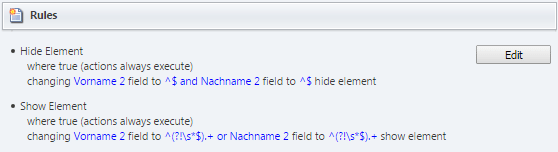
Rules to show or hide fields when text is entered in a previous field
A short explanation to the field values: ^$ is a regular exprission for string.Empty, ^(?!\s*$).+ is a regular expression for !string.Empty.
The WFFM rules are a mighty way to interact with the form! It is also possible to restore values from the Analytics Cookie:

Next part is a custom Save-Action. Stay tuned.
Regards Dirk
 Seiten.Kern